Hosting: Jira Cloud and Jira Data Center
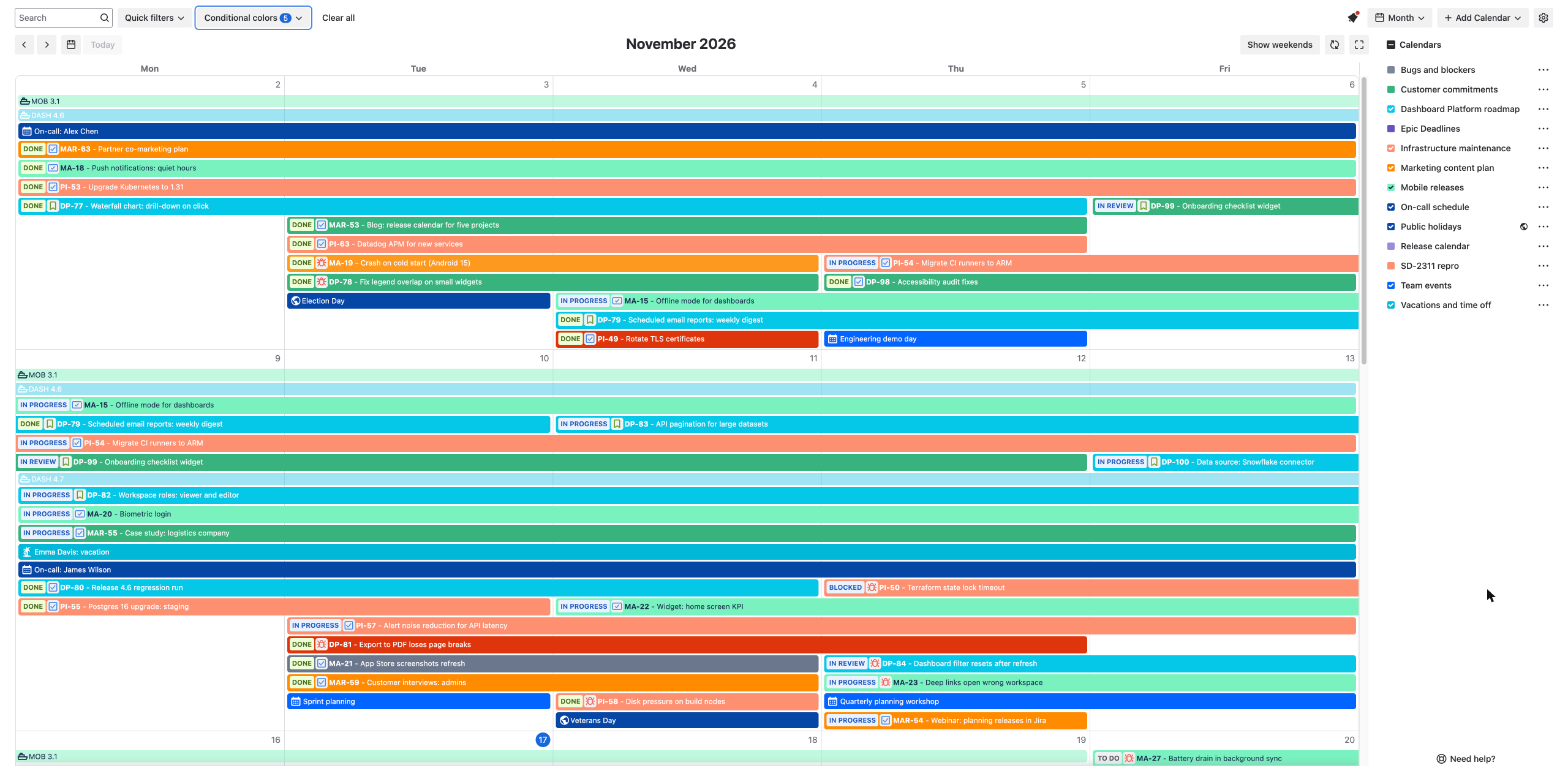
User events are events that you add to a calendar yourself, for example a vacation, a business trip or a team meeting. The calendar shows them next to Jira issues. You set them up on the User events tab of the Create calendar or Edit calendar dialog. Every calendar has this tab except a subscribed external calendar.
Enable events
A Project, Board, Filter or JQL Query calendar shows Jira issues. Check Enable events to add user events to it, and the other settings of the tab appear. A Basic calendar has only user events, so it has no checkbox and the settings are always there.
If you clear Enable events later, the calendar stops showing its user events.
Time zone
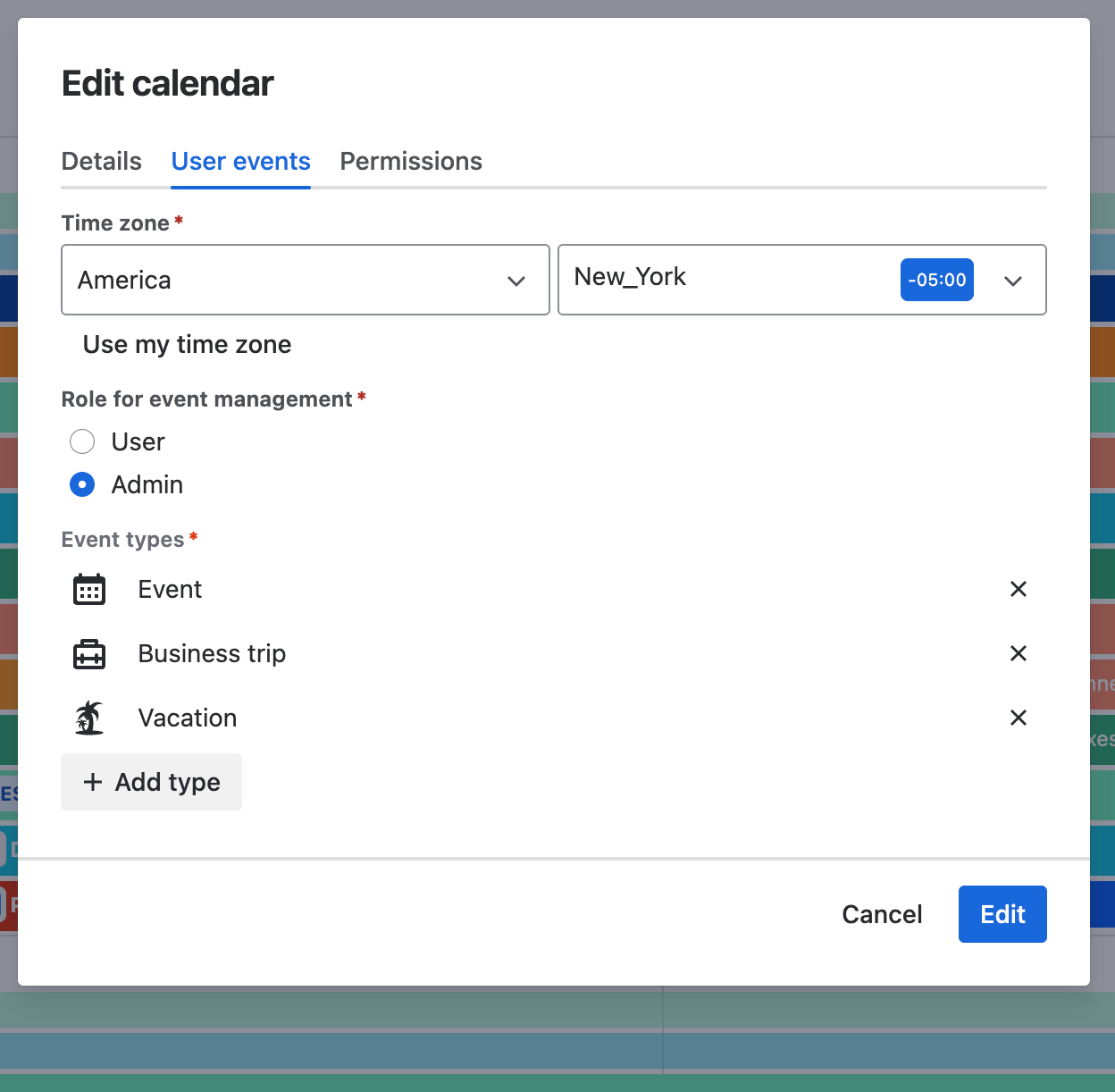
Time zone is required. Select a region and then a zone, or click Use my time zone.
The calendar uses it for repeating events that have a start time. Every repeat is calculated in this time zone, so a weekly meeting at 10:00 stays at 10:00 in that zone when the clocks change. All-day events do not depend on it.
Role for event management
This setting decides who can create, edit, move and delete user events in the calendar. The roles themselves are given on the Permissions tab.
-
Admin: only people with the admin role in the calendar. A new calendar starts with this value.
-
User: everyone with the user role or the admin role.
People who cannot manage events still see them.
On Data Center, Jira administrators have the admin role in every calendar. On Cloud, everyone with the global permission "DoItBetter Calendar Administrators" has it, and Jira administrators have this permission by default.
Event types
A new calendar has three types: Event, Business trip and Vacation. To add your own, click Add type and enter a name. Click the icon to the left of a name to choose another icon, and click the name to change it. A calendar needs at least one type and can have up to ten.
The cross next to a type removes it when you save the calendar. Events that already have this type stay on the calendar with the same type name and icon. The type is no longer in the list for new events.
Where you choose and see the type
To add an event, open the "..." menu of the calendar and click Add event. In the Create event dialog the Type field is next to the calendar.
On the calendar, a user event shows the icon of its type before the event name. The event details show the type name.