

Hosting: Jira Cloud and Jira Data Center. Page names and permissions that differ are named in the text.
You can share a quick filter or a conditional color with one or more Jira groups, and a Jira admin can give it to everyone in a group as a default.
Share an item with a group
Open the "Quick filters" menu above the calendar and click "Manage quick filters", or "Create filter" if you have no filters yet. In the form of a new filter or of one of your own, choose the groups in "Share with" and click "Create" or "Update". Conditional colors work the same way: the "Conditional colors" menu, then "Manage conditional colors".
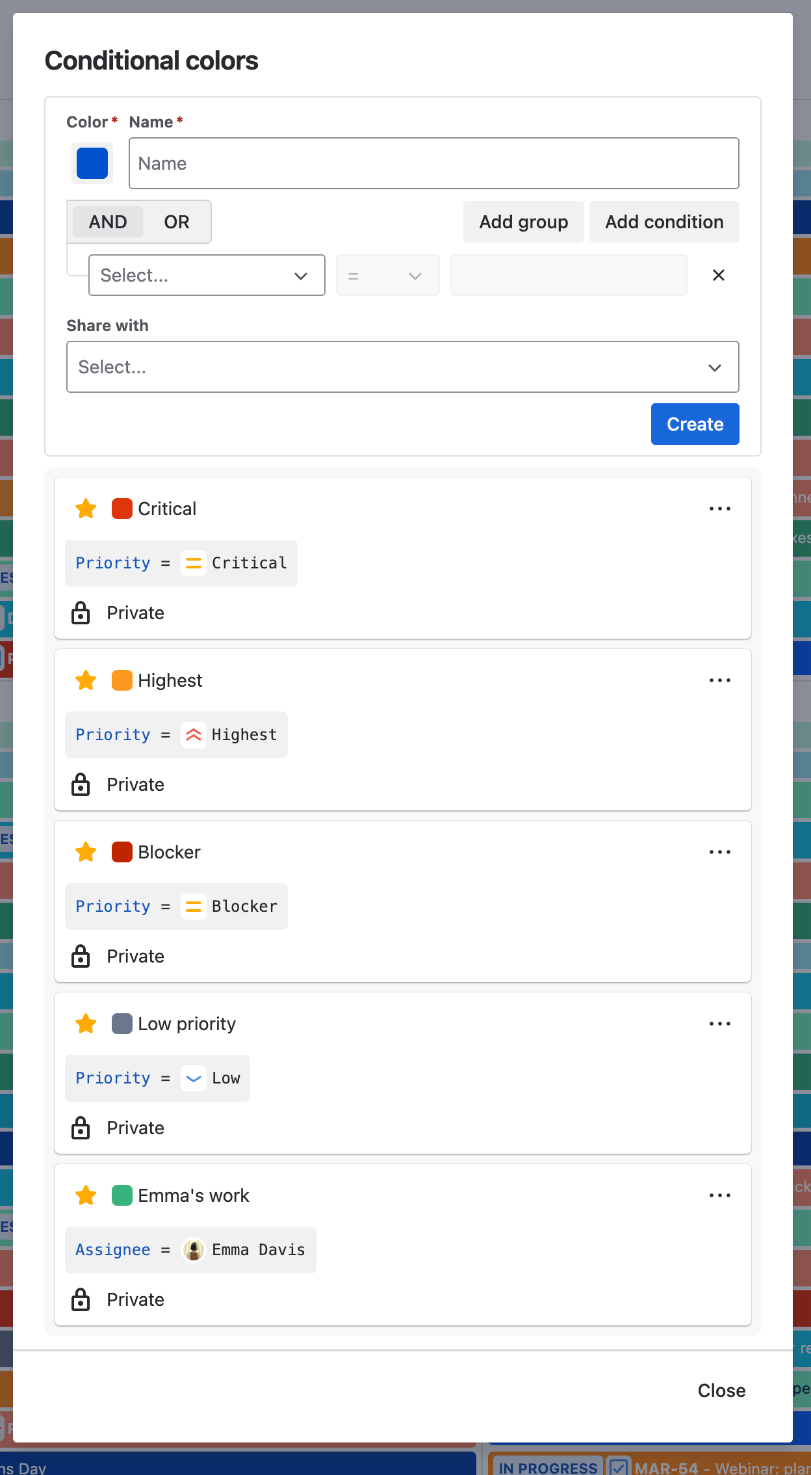
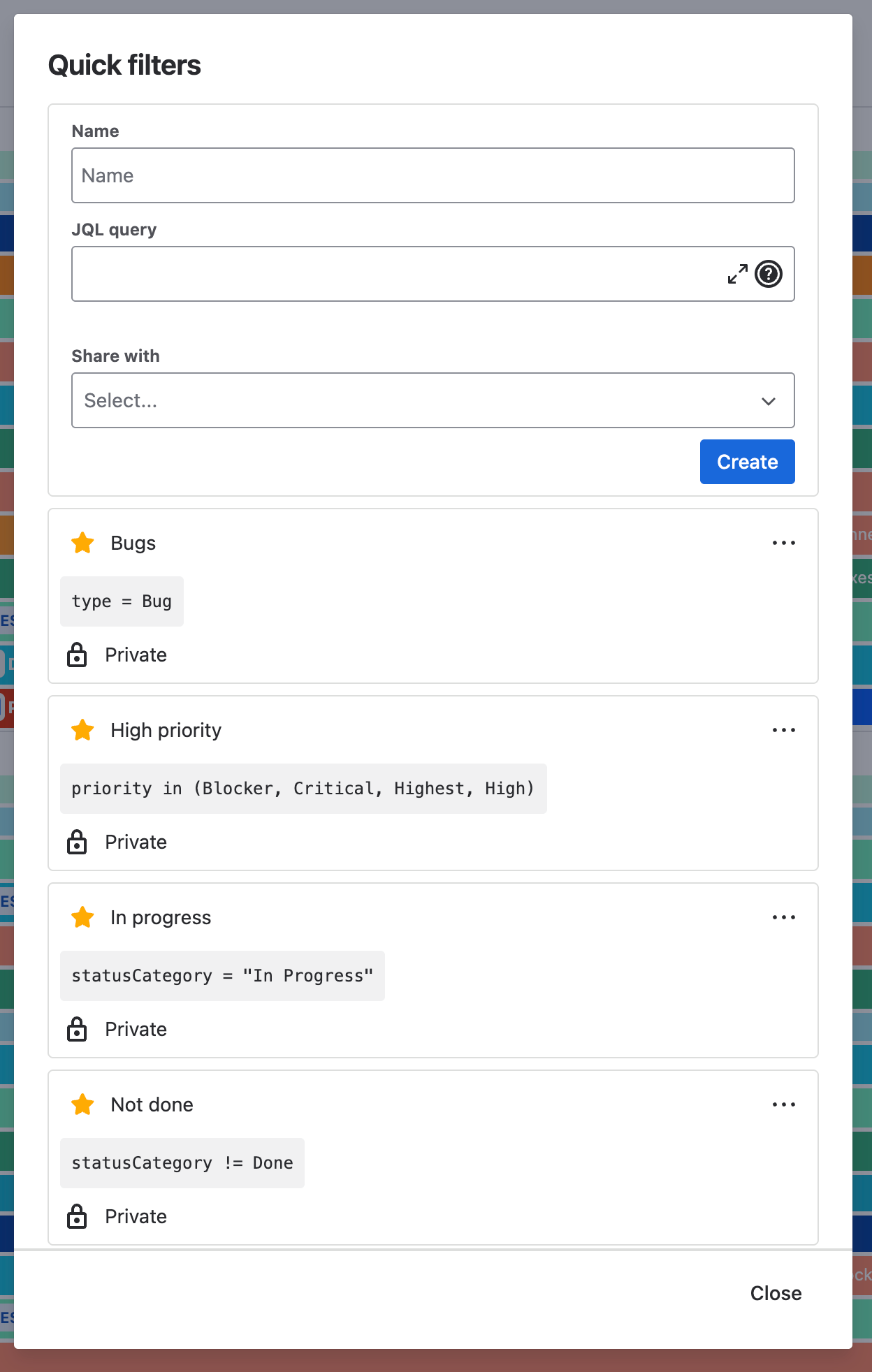
What the people in the group see
The shared item appears in their "Quick filters" or "Conditional colors" dialog, below their own items, with an open lock and "Used by N users". They click the star next to it, and after that it is in their menu above the calendar like one of their own.
They cannot edit or delete it. Only you can, and also a user with the "Calendar Administrators" global permission on Cloud, or a Jira administrator on Data Center. A change applies to everyone who uses the item, and deleting it removes it for them too, so the dialog first tells you how many users it has.
You can create 30 quick filters and keep 30 starred, and you can keep 50 conditional colors starred. Shared items that you starred count.
Give a group a default set (Jira admin)
The two admin pages are in the "DoItBetter calendar" section of the Jira apps administration. On Cloud they are called "Default quick filters" and "Default color conditions" and need the "Calendar Administrators" global permission. On Data Center they are called "Default quick filters settings" and "Default color conditions settings" and need Jira System Administrator.
-
Create the quick filter or conditional color in the calendar first. The admin page offers only items that you created or that are shared with one of your groups.
-
On the admin page click "Add default quick filter" or "Add default color condition".
-
Choose the item and the "Group". For a color condition also choose "Position": "Add to Top" or "Add to Bottom" of the user's list.
-
Check "Always add" if you need it, and click "Add".
The item is now shared with that group, and each user gets it in their menu, switched off, the next time they open the calendar.
Without "Always add", a user gets the item only if they have no starred quick filters (or conditional colors). With it, every user in the group gets it, and if a user removes the star, the item comes back the next time the calendar loads. They can leave it switched off, but cannot remove it from the menu.
To stop this, click "More" in the row, then "Delete". The item stays shared, and users who already have it keep it. While an item is a default, it cannot be deleted and its group cannot be removed from "Share with".