

Hosting: Jira Cloud
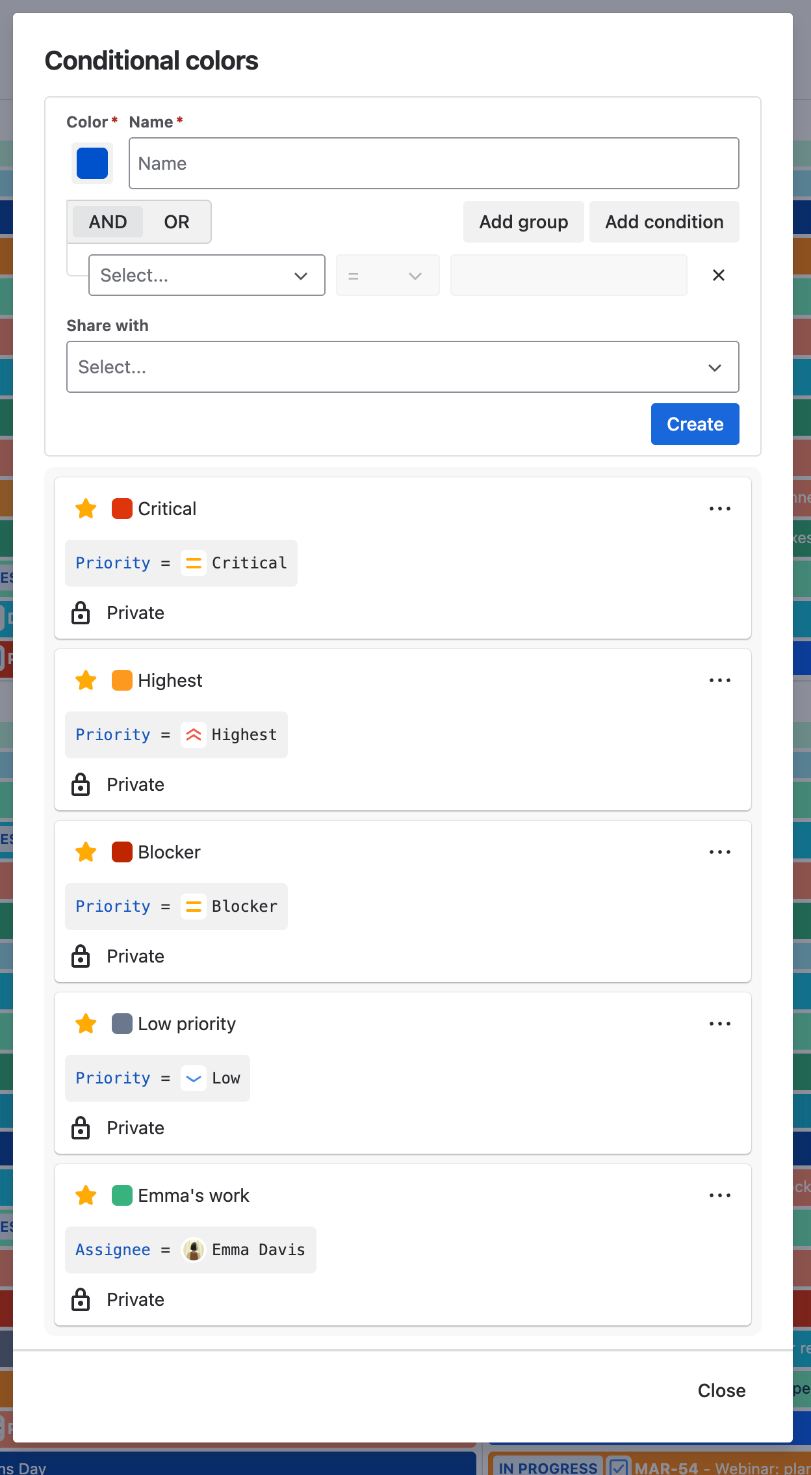
A conditional color paints an issue on the calendar when the issue matches a condition. You build conditions in two places with the same editor: your own colors in the "Conditional colors" menu, "Manage conditional colors", and the colors of a calendar on the "Conditional colors" tab of its "Edit" dialog.
Fields
The field list shows the fields under the names your Jira gives them. System fields: summary, priority, status, issue type, project, assignee, reporter, labels, components, affected and fixed versions, "Epic link", the created, updated, resolution and due dates, and the three time tracking fields.
Custom fields of these types: single and multi select, radio buttons, checkboxes, text (one line and paragraph), labels, user picker (one or several users), date, date and time, number, sprint, cascading select, SLA and team.
Operators
|
Kind of field |
Operators |
How the value is compared |
|---|---|---|
|
Text, labels, components, select, radio buttons, checkboxes |
|
You type the value. |
|
Priority, status, issue type, project, users, team |
|
You pick the value from a list. |
|
Versions, "Epic link" |
|
You type the version name or the key of the epic. |
|
Number, date, date and time |
|
A number, or a date value from the next section. |
|
Sprint |
|
The sprint name, or a sprint function with |
|
Cascading select |
|
First choose |
|
SLA |
|
First choose the part of the SLA to check. |
When a field holds several values (labels, components, several sprints), = and ~ match if any of the values matches, and != matches if none of them does. != also matches an issue where the field is empty.
Values
|
Value |
Where |
Meaning |
|---|---|---|
|
A date from the date picker, like |
Date fields |
That day. |
|
|
Date fields |
The current day. |
|
|
Date fields |
The current moment. Like |
|
|
Date and time fields |
The start or end of the current day. |
|
|
Date fields |
The first or last day of the current month or year. |
|
|
Date fields |
A date counted from now: years, months, days, hours, minutes. |
|
|
Assignee, reporter, user picker |
The person who looks at the calendar. |
|
|
Sprint |
The issue is in an active, closed or future sprint. |
|
|
SLA, |
The state of the SLA. |
|
A whole number of seconds |
SLA, |
Time passed or left in the running SLA cycle. |
The start and end functions take a shift as an argument: startOfMonth(-1) is the first day of the previous month and endOfDay(1) is the end of tomorrow.
A date and time field is compared by day when the value is a date from the picker or today(). With any other value it is compared to the exact moment, so use < and > there: "Created > -24h" matches issues created in the last 24 hours.
currentUser() does not match in a field that holds several users. Pick the person there.
Groups: AND, OR and nesting
A color has one top group. The AND and OR switch of a group decides whether all of its lines must match or any one of them. "Add condition" adds a line, and "Add group" adds a group inside the current one with its own switch, so you can write "Priority = Highest AND (Assignee = currentUser() OR Reporter = currentUser())".
A group holds up to 5 lines, conditions and groups together. Groups go two levels deep under the top group, and one color holds up to 9 conditions in total.
Which color wins
An issue gets one color. The app checks your own colors first, only those switched on in the "Conditional colors" menu, from the top of your list down, and takes the first that matches. If none of yours matches, it checks the colors of the calendar in the order of the tab, and if none of them matches, the issue keeps the color of the calendar. To change the order, drag a color up or down. In your own list you can drag starred colors only.
What a condition does not see
Conditions are checked against Jira issues only. User events, versions, sprints and the events of a subscribed calendar keep the color of their calendar.
Priority, status, issue type, project, users and team are compared by the value you picked, not by its name. In team-managed projects issue types and statuses belong to the project, so "Issue Type = Bug" matches the Bug type of one project only. For a calendar with several such projects, put one condition per project in a group and set the group to OR. Priority and Assignee work across projects.
Limits
A calendar holds up to 30 conditional colors. You can keep up to 50 colors starred.