

Hosting: Jira Cloud and Jira Data Center. The dialog and its options are the same on both. The one difference is in the issue panel and is described at the end.
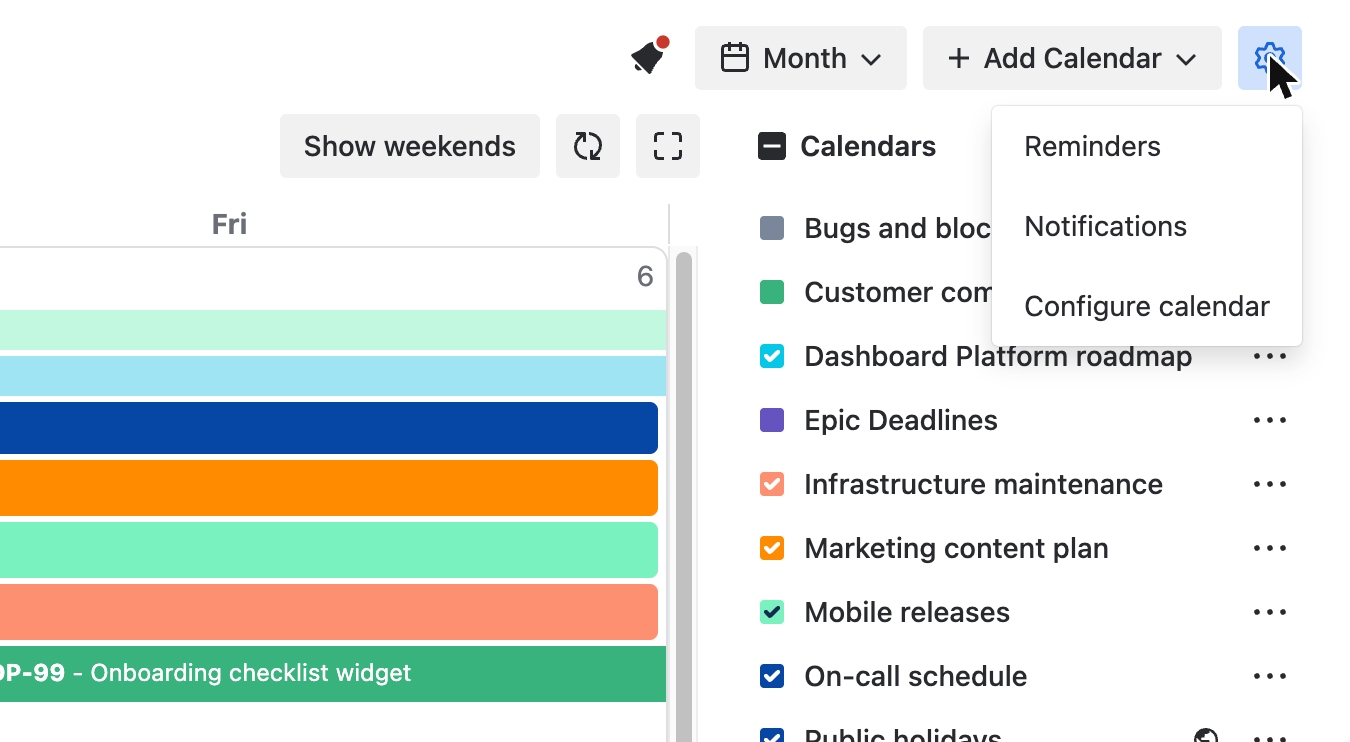
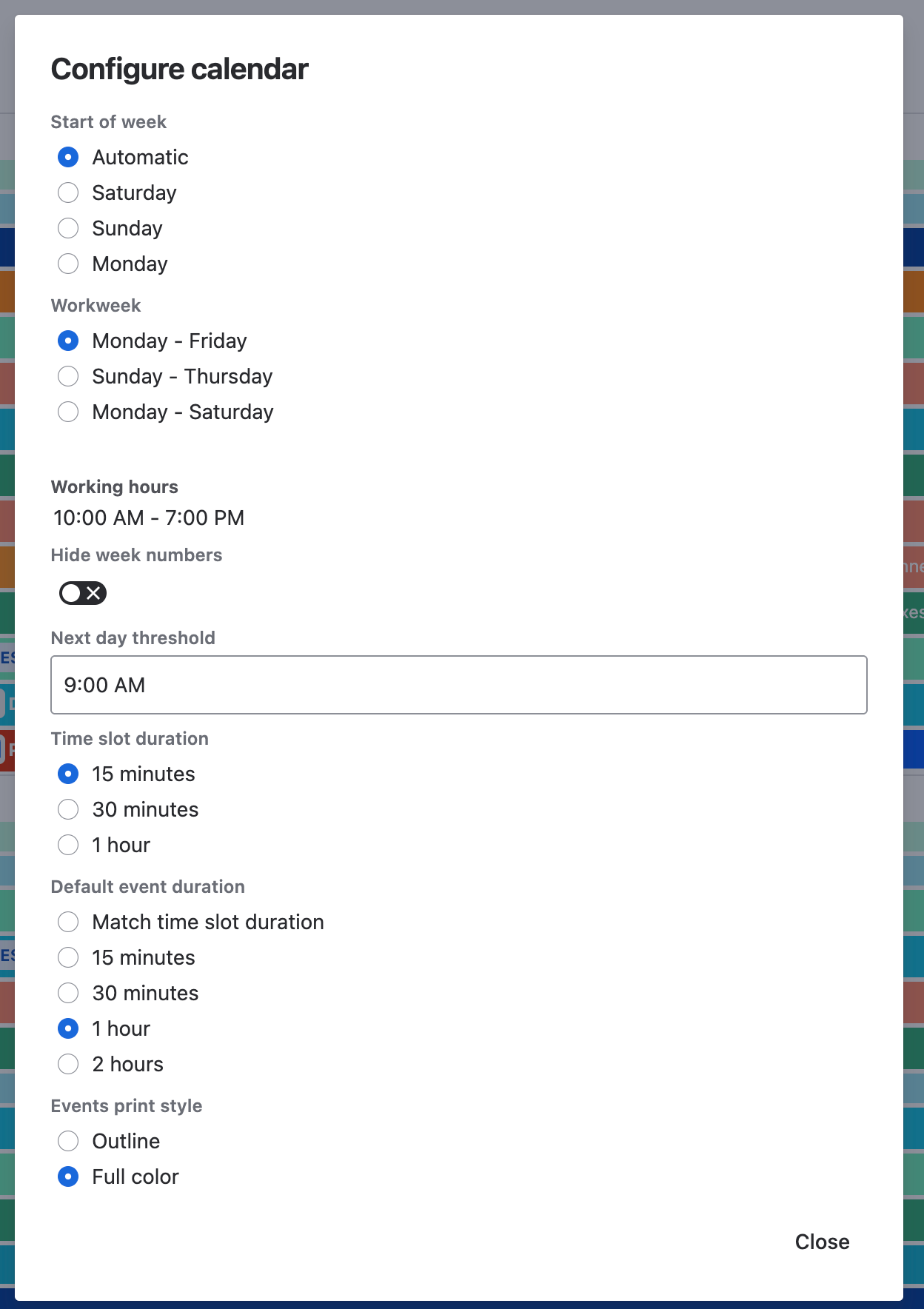
You can choose the first day of your week, your working days and hours, the step of the time grid and the way events are printed. Click the gear icon in the calendar header and choose "Configure calendar". Every change applies at once.
|
Option |
Values |
Default |
|---|---|---|
|
Start of week |
Automatic, Saturday, Sunday, Monday |
Automatic |
|
Workweek |
Monday - Friday, Sunday - Thursday, Monday - Saturday |
Monday - Friday |
|
Working hours |
a start time and an end time |
10:00 to 19:00 |
|
Hide week numbers |
on, off |
off |
|
Next day threshold |
a time before 12:00 |
09:00 |
|
Time slot duration |
15 minutes, 30 minutes, 1 hour |
1 hour |
|
Default event duration |
Match time slot duration, 15 minutes, 30 minutes, 1 hour, 2 hours |
2 hours |
|
Events print style |
Outline, Full Color |
Outline |
What each option changes
"Start of week" sets the first day of the week in the calendar and in the date pickers of the app. "Automatic" takes it from the language of your Jira user.
"Workweek" and "Working hours" describe your working time, and the calendar shows the time outside it with a gray background. The toolbar buttons use the same values: "Hide weekends" hides the days outside your workweek, and "Only business hours" cuts the Week and Day views to your working hours.
"Hide week numbers" removes the week numbers from the calendar.
"Time slot duration" is the step of the time grid in the Week and Day views. "Default event duration" is the length the calendar draws for an event that has a start time and no end time, and "Match time slot duration" makes such an event one slot long. "Next day threshold" matters for an event that ends after midnight: in a view without a time grid, for example Month, the event also covers the next day only when it ends at this time or later.
"Events print style" works when you print the calendar: "Outline" prints events as black text on white, and "Full Color" keeps their colors.
Who sees these settings
The settings are yours only. They are saved with your Jira user and not in the browser, so you get the same calendar on another computer and no other user is affected. The state of the "Hide weekends" and "Only business hours" buttons is kept in the browser.
The dashboard gadget and the project calendar use the same settings.
The issue panel has no calendar grid, so only "Start of week" matters there: it sets the first day in the date pickers when you create an event from the panel. On Data Center it also works in the "Schedule issue" dialog of the panel, and on Cloud that dialog always uses "Automatic".
The dialog has no time zone option. The calendar shows times in the time zone of your Jira user.