

Hosting: Jira Cloud
The sync copies the events of one Jira calendar into a separate calendar in your Google account. The app creates this Google calendar and gives it the name of the Jira calendar. Each user turns the sync on for themselves, for up to 5 calendars. A calendar subscription cannot be synced.
What is synced
|
|
From Jira to Google |
From Google back to Jira |
|---|---|---|
|
User events |
name, description, location, dates, recurrence |
changes of the name, description, location, dates and recurrence |
|
Issues |
title "KEY: summary", the "Event info fields" as description, a link to the issue, dates |
dates only |
A date change made in Google is written to the date fields of the Jira issue, except when the calendar uses the created, updated or resolution date.
An event or issue that leaves the Jira calendar is removed from Google. An event you delete in Google stays in Jira, and an event you create in Google stays in Google only. Versions, sprints and issues of the projects listed in "Exclude projects from exports" are not sent to Google.
The sync covers events from 30 days in the past to 90 days in the future, up to 1000 events in one run. The first copy starts within a minute, and after that changes go both ways every 4 minutes, and issues that left the calendar are removed from Google every 10 minutes.
The menu
Open the "..." menu of the calendar and choose "Two-way synchronization".
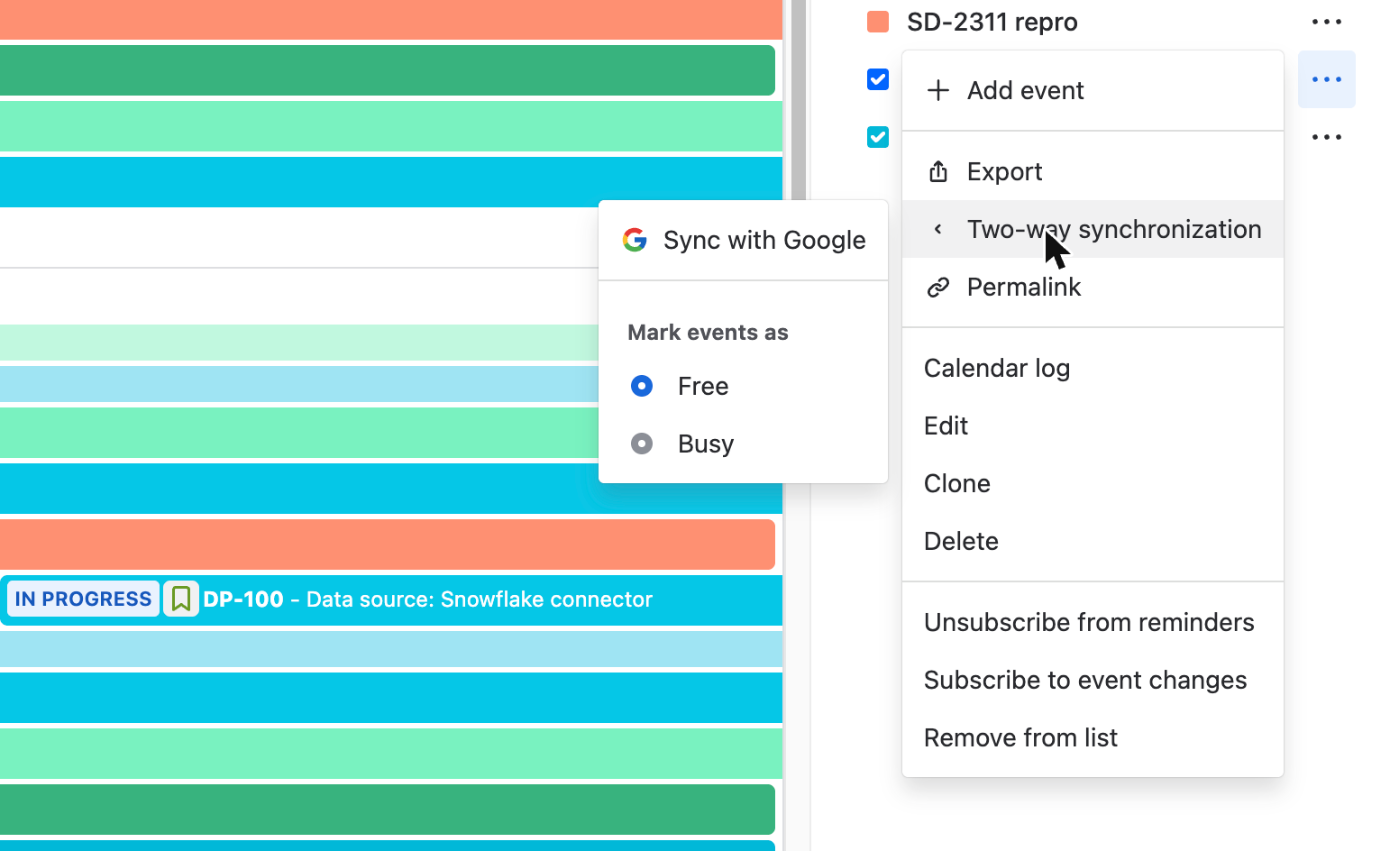
"Sync with Google" turns the sync on. "Stop Sync with Google" turns it off and keeps the Google calendar.
"Trigger re-sync" sends all events again. It is available 15 minutes after you turned the sync on or used it the last time.
"Mark events as" sets whether Google shows the events as "Free" or "Busy" ("Free" by default).
"Delete Google Token" in the gear menu removes the access of the app to your Google account. The sync stops for all your calendars until you choose "Sync with Google" and sign in again.
What the admin switches on
On the admin page "Export" of the app, tab "General settings", turn on "Enable Google Calendar two-way sync". Each user also needs the global permission "DoItBetter Calendar Exporters". Without either of them the menu has no "Two-way synchronization" item. Turning the switch off stops the sync for all users, and "Disable export for this calendar" in the calendar settings stops it for one calendar.
When the sync turns itself off
The sync stops when you lose the export permission or the access to the calendar, when the Google calendar is deleted, or when the date field of the calendar no longer exists. You get a notification under the bell icon, for example "Google synchronization deactivated: calendar no longer accessible".
Active integrations
The tab "Active integrations" on the same admin page lists every synced calendar with its user and the time of the last sync. "Deactivate" stops the sync of that user, and the user gets the notification "Google integration was deactivated by admin".