Hosting: Jira Cloud and Jira Data Center
The calendar opens in the Month view. To change the view, click the button with the calendar icon and the name of the current view, next to "Add Calendar" above the calendar, and pick one of the eight views. The app remembers your choice in the browser, so next time the calendar opens in the same view.
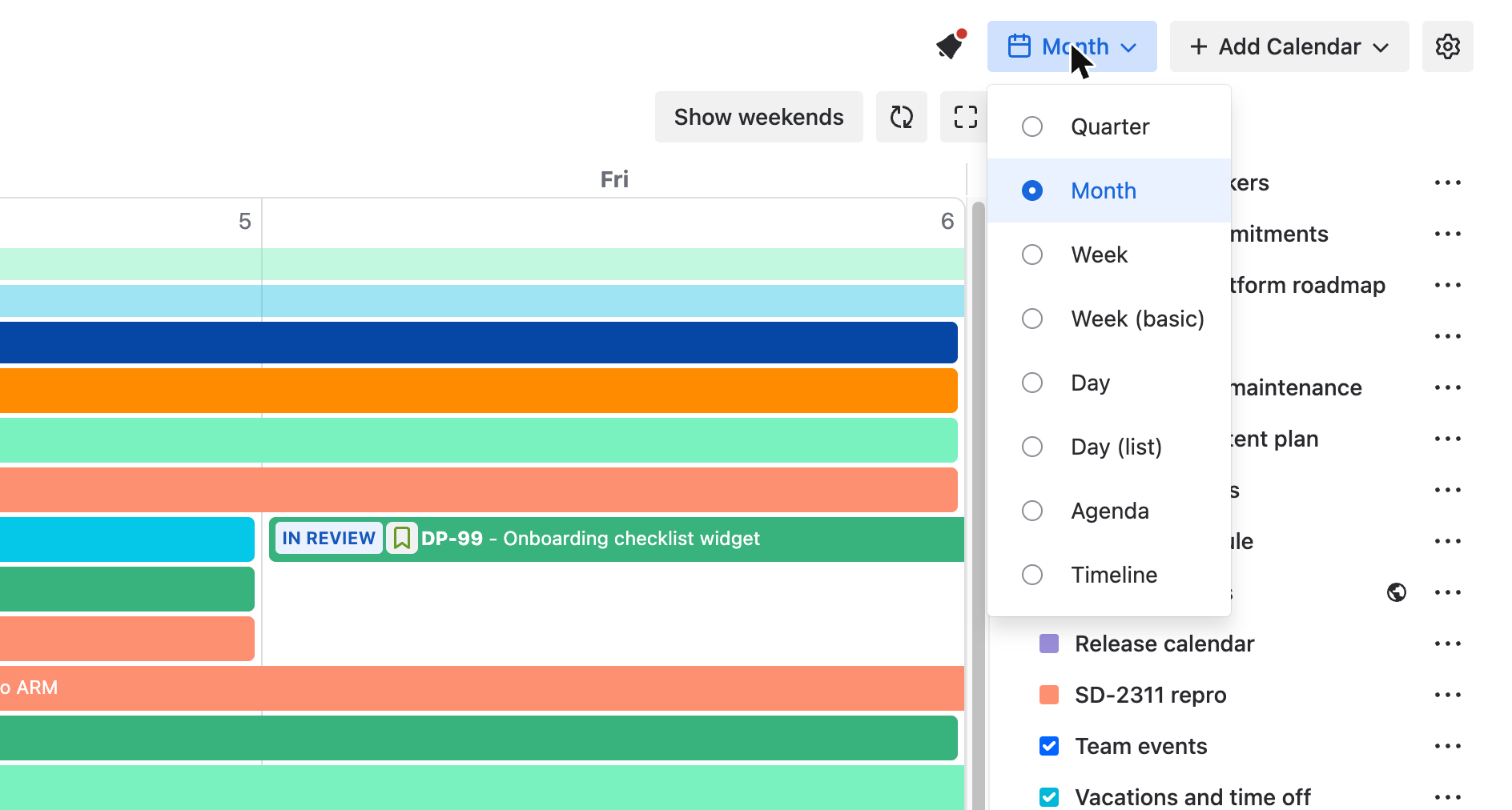
What each view shows
-
Quarter shows the three months of a calendar quarter in one grid, with the name of each month on its first day. Pick it when you plan releases or long tasks for the whole quarter.
-
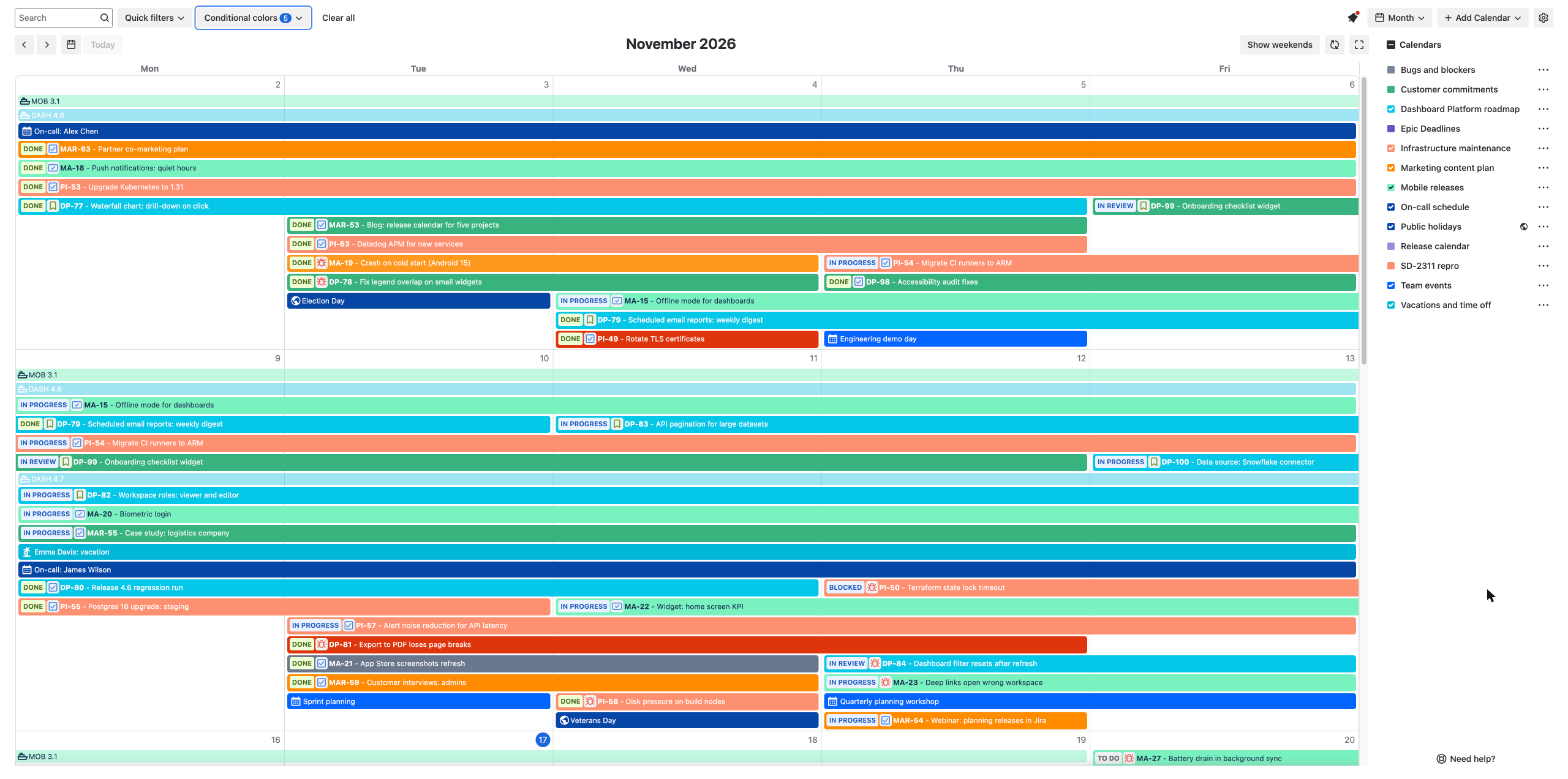
Month shows one month as a grid of days.
-
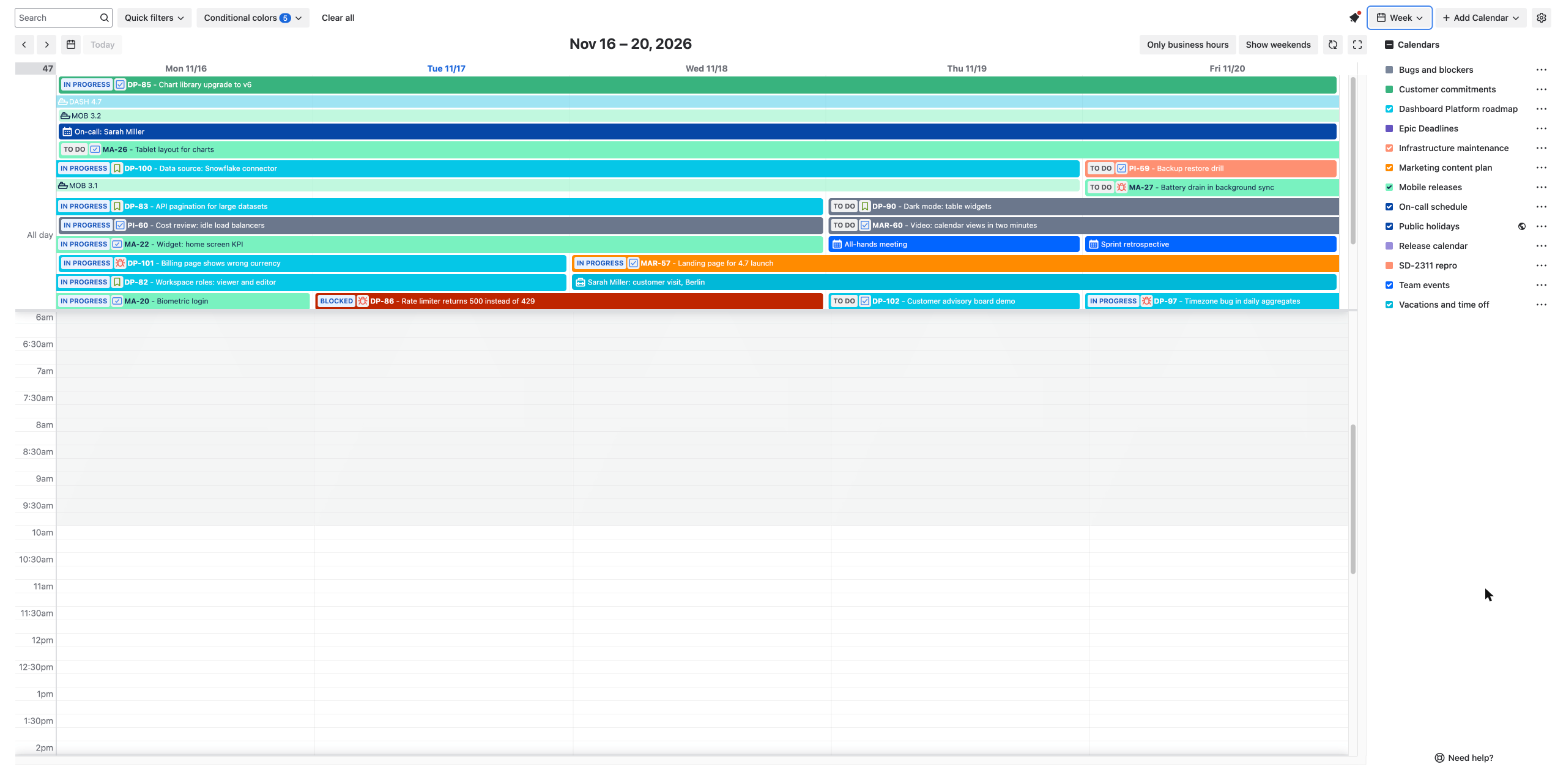
Week shows the days of one week as columns with a time scale on the left, so an event with a start and end time takes the hours it lasts. Pick it for meetings and other events with a time.
-
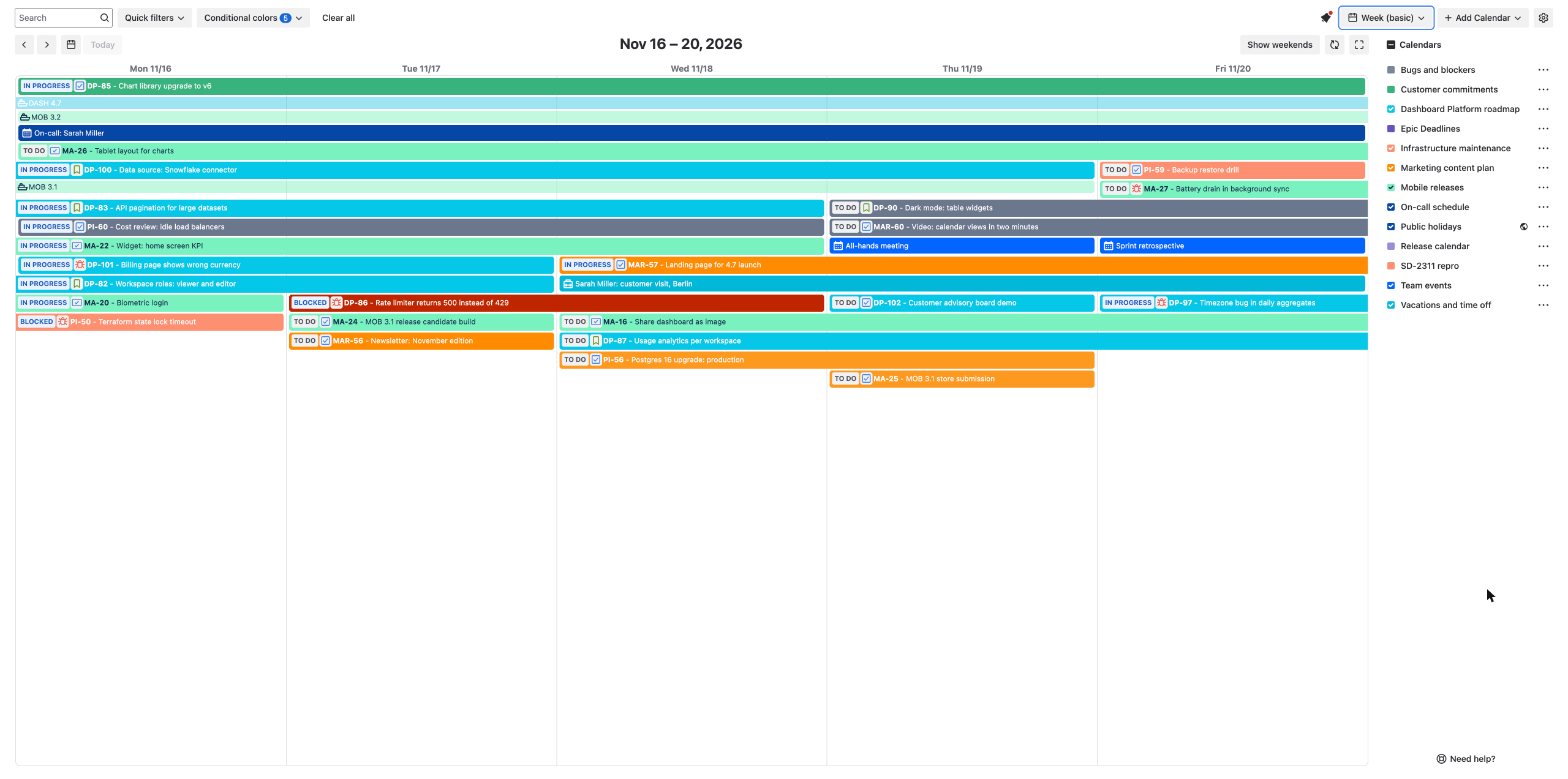
Week (basic) shows the same week without the time scale. Events are stacked inside each day, which is easier to read when most of them are issues with dates and no time.
-
Day shows one day with the time scale.
-
Day (list) shows the events of one day as a list.
-
Agenda shows the events of the coming weeks as a list, with a heading for every day.
-
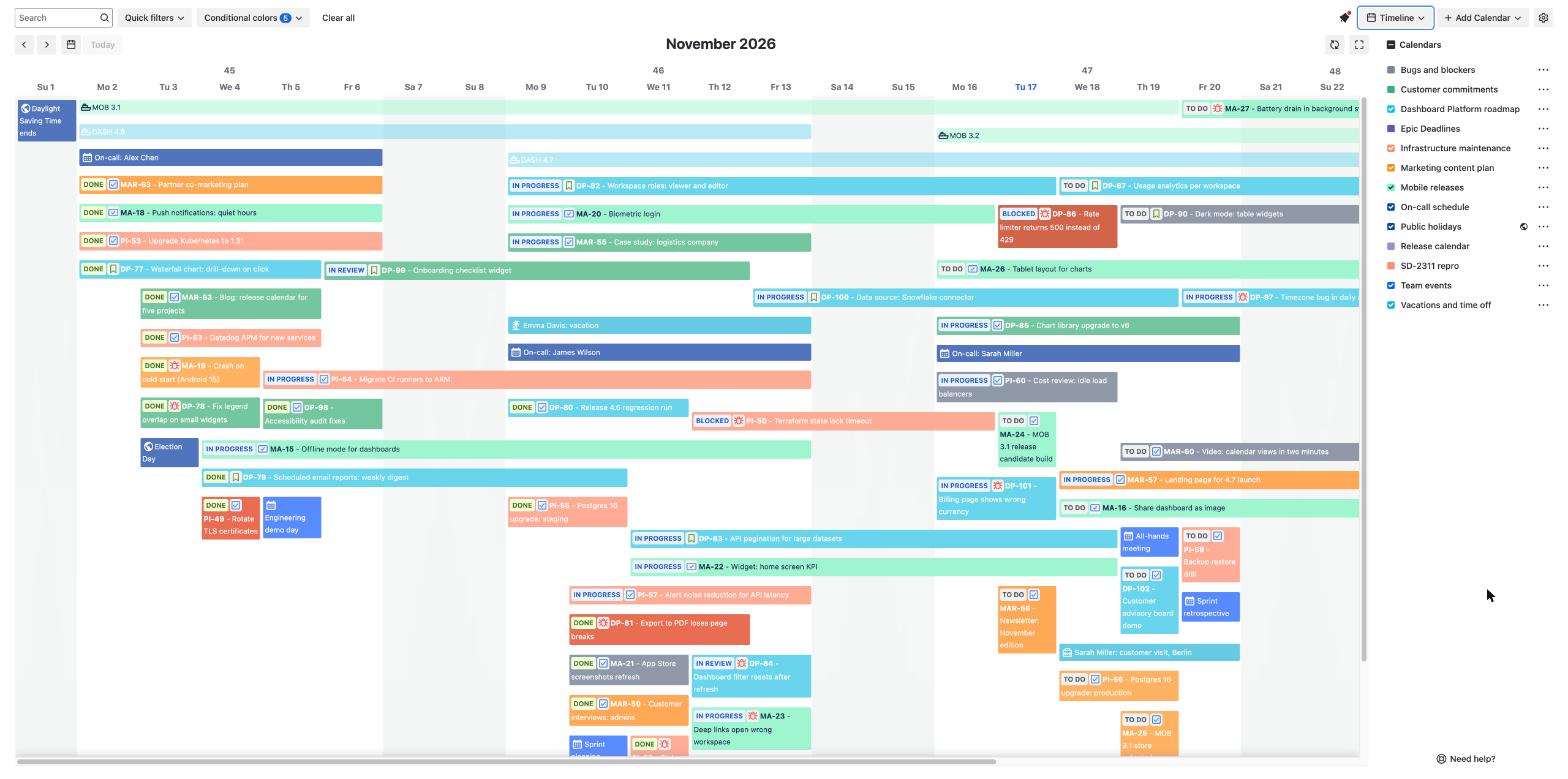
Timeline shows one month as a horizontal line with a column for each day. Events are bars on this line, one under another. The rows are not grouped by calendar, project or assignee.
The toolbar above the calendar
The arrows on the left move to the previous or the next period, and "Today" returns to the current one. To go to another date, click the calendar icon between the arrows and "Today" and pick a day.
"Hide weekends" removes the days outside your workweek, and "Show weekends" returns them. The button is in the Quarter, Month, Week and Week (basic) views. "Only business hours" cuts the Week and Day views to your working hours, and "All hours" shows the whole day again. The workweek is Monday to Friday and the working hours are 10:00 to 19:00 until you change them: click the gear icon, select "Configure calendar" and set "Workweek" and "Working hours".
The refresh icon loads the events again.
The last icon opens the calendar in full screen. The view button and the list of calendars are hidden there, so choose the view first. Two more icons appear in full screen. The printer icon opens the print dialog of your browser. The play icon makes the calendar scroll slowly down and up, and the pause icon stops it.