

Calendar for Jira shows all dates and times in your own time zone, taken from your Atlassian account. Most time zone questions come down to one of the cases below.
How to change your time zone
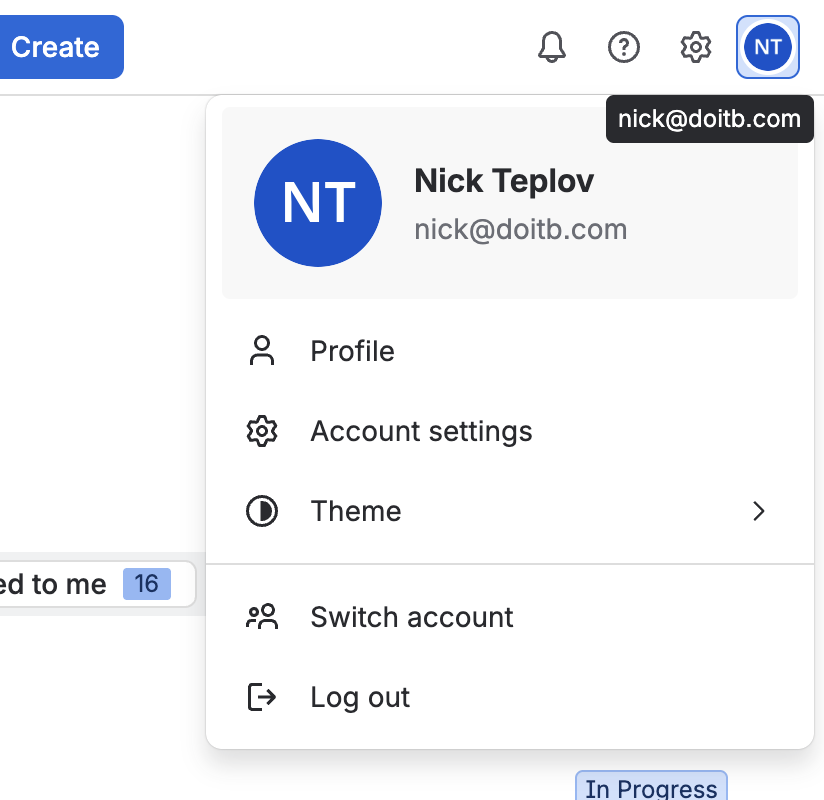
Click your avatar in the top right corner of Jira and select Account settings.
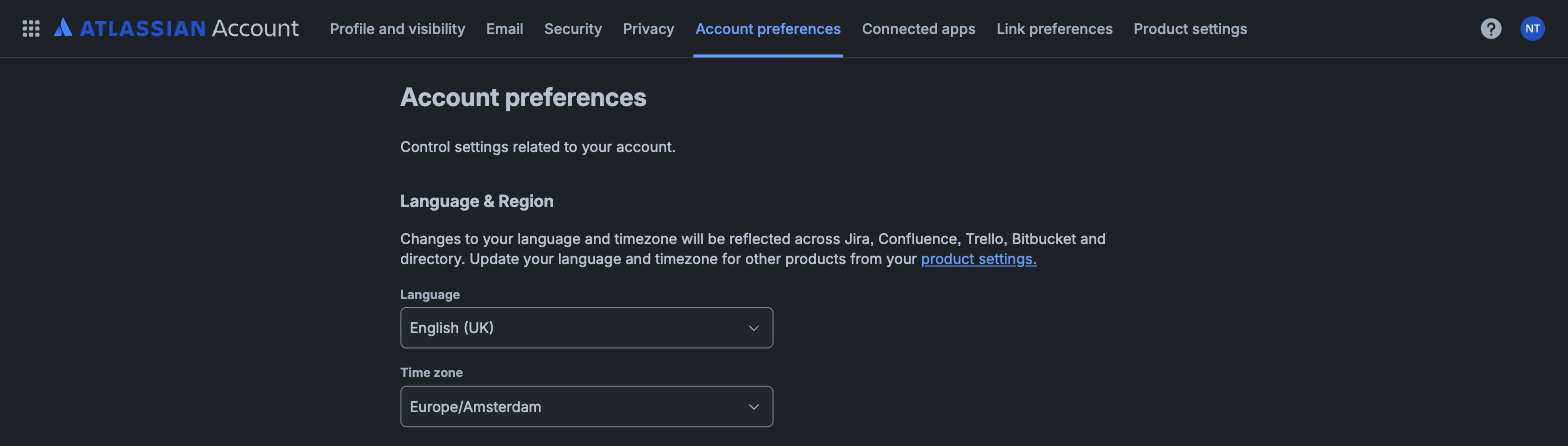
On the Atlassian account page, open the Account preferences tab and set your Time zone in the Language & Region section.
The change applies to Jira, the calendar, and other Atlassian products. Reload the calendar page after changing it.
Note: Jira also shows a time zone field under Settings (gear icon) > Personal Jira settings > General settings, but it is read only. It always mirrors the value from your Atlassian account.
The same event shows different times for different users
This is expected. An event with a time is stored as one moment and every user sees it in their own time zone: a meeting at 10:00 am in Denver shows at 9:00 am for a colleague in Los Angeles.
An event appears on the wrong day for some users
This happens with events that start near midnight. For example, an event starting at 12:00 am on Tuesday in Denver shows at 11:00 pm on Monday for users in Los Angeles, so it looks like it moved to another day.
If the event marks a whole day (a vacation, an absence, an office closure), create it as an all day event: turn on the All day option in the event dialog. All day events are attached to a date, not to a time, so every user sees them on the same day regardless of time zone. If you need to note an exact time, you can keep it in the event name, for example “Maria - Out at 10am”.
Only one user sees wrong times
The time zone is a personal setting, so one user can have a wrong value while everyone else sees the calendar correctly. Ask that user to check their time zone as described at the top of this page.
If the setting looks correct but the times are still wrong, open this link in the browser while logged in to Jira (replace YOURSITE with your Jira address):
https://YOURSITE.atlassian.net/rest/api/2/myself
Find the timeZone value in the response. This is the time zone Jira actually reports. If it differs from what the account page shows, or if you cannot find the cause, contact our support and send us this value.
Events from a recurring series appear on unexpected dates
Recurring events are expanded in the calendar time zone if it is set in the calendar settings, otherwise in your own time zone. If a recurring series looks shifted, check the time zone in the calendar settings (Edit calendar) and the time zones of the users who see the shift.